Friday, July 19, 2024

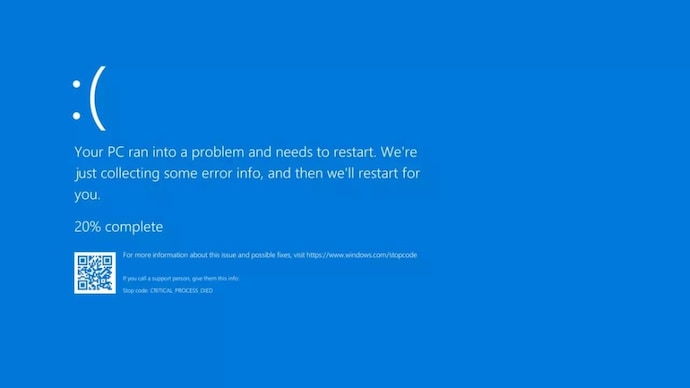
Blue Screen of Death appeared in Microsoft Windows - CrowdStrike Issue

 On 19th July 2024, a number of computers across the globe faces outage. Suddenly a 'Blue Screen of Death' appeared on computers running Windows 10. This doesn't affect few computers, but it affected some major companies like banks, airlines, restaurants, etc. 


On preliminary investigation, it was found that the problem occurred on Windows 10 computers which also running CrowdStrike as a cyber security software solution. 

A faulty update was published by CrowdStrike which causes this error. It crashes Windows 10 systems. Since the computers had crashed, it was not possible to automatically restore them through online / remote support. 

The solution suggested to recover this error, as suggested by CrowdStrike is as follows:

How to deal with the Blue Screen of Death.
  1. "Boot Windows into Safe Mode or the Windows Recovery Environment.
  2. "Navigate to the C:\Windows\System32\drivers\CrowdStrike directory.
  3. "Locate the file matching 'C-0000029*.sys', and delete it.
  4. "Boot the host normally."

Tuesday, March 21, 2023

Git for Beginners: A Step-by-Step Guide to Version Control

Git for Beginners: A Step-by-Step Guide to Version Control

Git is a powerful version control system that allows developers to track changes in their codebase. In this article, we'll guide you through the basic steps of using Git for beginners.

Step 1: Install Git

To get started with Git, you need to install it on your computer. You can download Git from the official website and follow the installation steps.

Step 2: Create a Git Repository

Once you have Git installed, you need to create a repository for your project. A repository is a place where Git stores all the changes made to your codebase. To create a repository, use the command "git init" in your project directory.

Step 3: Add Files to the Repository

After creating the repository, you need to add your project files to it. Use the command "git add ." to add all the files in the directory to the repository.

Step 4: Commit Changes

Once you have added the files to the repository, you need to commit the changes. A commit is a snapshot of your codebase at a specific point in time. Use the command "git commit -m 'commit message'" to commit your changes.

Step 5: Push Changes to a Remote Repository

If you're working with a team, you need to push your changes to a remote repository. Use the command "git push" to push your changes to a remote repository.

Step 6: Pull Changes from a Remote Repository

If your team members have made changes to the codebase, you need to pull those changes to your local repository. Use the command "git pull" to pull changes from a remote repository.

Step 7: Branching

Git allows you to create branches to work on different features or fixes without affecting the main codebase. Use the command "git branch" to create a new branch and "git checkout" to switch between branches.

In conclusion, Git is a powerful tool for version control that every developer should learn. By following these basic steps, you can get started with Git and explore more advanced features like merging, rebasing, and resolving conflicts. Happy coding!

Azure Development – The Future of Cloud Computing

As technological advancements continue to accelerate, Microsoft Azure has emerged as a top cloud computing platform. It offers a range of services that can be utilized for developing, testing, deploying, and managing applications on a global scale. With Azure, developers can focus on innovation instead of infrastructure, causing it to become the preferred option for software development today.

What is Azure Development?

Azure Development is a method of creating applications that utilize Microsoft’s Azure cloud platform. It is a set of practices and procedures that entails designing, developing, and deploying applications and services on the Azure cloud. The Azure platform offers a wide range of services, from computation to storage and analytics, enabling you to build and deploy applications with less overhead.

The Benefits of using Azure Development

Developing applications on Azure has several benefits, including its affordability, unbeatable scalability, and ease of deployment. Here are some other advantages of using Azure Development:

Faster development cycles

One of the main benefits of Azure Development is that it reduces the time to market for an application. Utilizing the extensive range of pre-built templates and tools for development, can enable developers to complete a project much quicker than previously possible.

Seamless integration

Azure Development is integrated with other Microsoft systems like Office 365, Power BI, and SharePoint, enabling developers to create a seamless workflow. This integration allows developers to share data across apps and assess relevant insights without the need to switch between applications.

Security

Azure offers reliable security systems to safeguard your data and applications. With built-in security features like Azure Active Directory (AD), you can manage access and permissions for your applications, data, and resources. Additionally, Azure's Compliance offerings provide tools that help you meet complex regulatory requirements.

Cost-effectiveness

With Azure Development, you can save on infrastructure and operational expenses. You don’t need to manage the hardware, and paying only for what you use ensures that you don't pay for any resources that go unused.

Flexibility

Azure Development enables you to build and deploy applications in any language or platform that suits your requirements. It supports various programming languages like .NET, Java, Python, and more. Additionally, Azure offers several options for running and managing applications, from Azure Virtual Machines to Azure Container Service.

Tools for Azure Development

Azure Development provides a range of developer tools to enhance your workflows and make your life easier. From tools for development such as Visual Studio and Azure DevOps, to services to test and deploy your applications such as Azure Functions.

Microsoft Visual Studio

Microsoft Visual Studio is an IDE (Integrated Development Environment) that enables the creation of software applications for multiple platforms. It allows developers to write code in multiple languages, including C++, C#, and JavaScript, and offers features such as IntelliSense, CodeLens, and Live Unit Testing. Additionally, Visual Studio offers integrations with Azure for quick deployment and management.

Azure DevOps

Azure DevOps enables continuous delivery for applications and helps teams maintain the highest possible code quality. It offers a range of services, from source control to Release Management, to provide full control over the software development lifecycle. AS such developers, can now develop, fix and collaborate on any issue, all with integration with Azure cloud.

Azure Functions

Azure Functions offers a way to run event-driven, serverless applications. It offers a way to run small pieces of code that automatically respond to real-time events, such as a new email being received or a new file appearing in storage. With Azure Functions, there's no infrastructure for developers to worry about, and it can be seamlessly integrated with other Azure services.

Conclusion

Microsoft Azure Development offers an array of benefits, including scalability, flexibility, and cost-effectiveness. It also offers a range of developer tools that improve workflow and enhance productivity. It's a feature-rich platform that enables developers to focus on innovation and development. With the help of Azure, businesses can streamline their processes, reduce time to market, and create reliable, secured applications. By creating applications on the Azure platform, you can benefit from easy, enjoyable, and hassle-free programming in the cloud.
Tuesday, February 8, 2022

Windows Service Error: The service did not respond to the start or control request in a timely fashion.

 Problem:

While deploying Windows Service built with .Net, you may have encountered this issue.

The service did not respond to the start or control request in a timely fashion.

Solution:

There is no description about the error appears anywhere, and you may have spent too much time in diagnosing this issue. Same happened to me, later I get it solved after searching a number of sites. Finally succeeded. So I decided to document the possible solutions:


1. DLLs Missing: 

Check if there is any dll file missing in the deployment. This is the most common mistake that the developers perform.

2. Service Logon Account: 

Check if the service running with Account has all the priviliges that are required to perform any operation. Open "View Local Services" then right click on your deployed service and take Properties. On "Log On" tab you will find the windows account which the service will be using to run. You can change the account credentials with privileged user to diagnose the problem.

3. Corrupt Installation or Corrupt files 

Files are corrupted required to run the service.

4. Network Related Issues:

There may be many other issues like Network configuration, Windows not updated,  required Version of .Net Framework is missing, Using Debug/Release build, Platform architecture mismatch, etc.


Hope you will get the solution from above solutions.

Happy Coding!

Saturday, December 19, 2020

How to Execute an Oracle stored procedure that returns LOB parameter using Entity Framework Core in .Net Core 3.1 with C#

Problem:

How to Execute an Oracle stored procedure that returns LOB parameter using Entity Framework Core in .Net Core with C#.

Solution:

Executing a simple stored procedure without LOB value is not a headache in Entity Framework, but if you try to execute a procedure that returns an LOB parameter, it may be a headache for you, because using any other method like FromSQLRaw, etc, procedure is executed but the Oracle connection closes before fetching LOB value. Here is the sample code to execute a stored procedure, lets say 'MY_PROC' that returns a CLOB parameter.


 private void ExecuteProcedure(IDbConnection dbConnection, Document d, DocumentDetail di, bool IsApproved, long? AgentKey, out string Status,out string Error)
        {
            try
            {

                Error = "";

                OracleParameter p1 = new OracleParameter("LOT_TYPE", OracleDbType.Varchar2, (d.Category == LotCategory.IMPORT) ? "BL" : "CRN", System.Data.ParameterDirection.Input );
                OracleParameter p2 = new OracleParameter("LOT_ID", OracleDbType.Varchar2, (d.Category == LotCategory.IMPORT) ? d.BLNo : d.CRNNo, System.Data.ParameterDirection.Input);
                OracleParameter p3 = new OracleParameter("ERRR", OracleDbType.Clob, System.Data.ParameterDirection.Output);
                OracleParameter p4 = new OracleParameter("STATUS", OracleDbType.Varchar2, System.Data.ParameterDirection.Output);
                OracleParameter p5 = new OracleParameter("DOC_ID", OracleDbType.Varchar2, di.BillingDocId,System.Data.ParameterDirection.Input);
                OracleParameter p6 = new OracleParameter("pIS_APPROVED", OracleDbType.Int16, (IsApproved)? 1:0, System.Data.ParameterDirection.Input);
                OracleParameter p7 = new OracleParameter("pVALIDITY", OracleDbType.Date, di.Validity, System.Data.ParameterDirection.Input);
                OracleParameter p8 = new OracleParameter("pAGENT_KEY", OracleDbType.Int64, AgentKey, System.Data.ParameterDirection.Input);
                OracleParameter p9 = new OracleParameter("pCREATOR", OracleDbType.Varchar2, HttpContext.ConnectedUser(), System.Data.ParameterDirection.Input);


                p3.Size = 5000;
                p4.Size = 50;


                var CON = _context.Database.GetDbConnection();
                {
                    con.Open();

                    var CMD = new OracleCommand();
                    CMD.Connection = (OracleConnection)CON;

                    CMD.CommandText = "MY_PROC";
                    CMD.CommandType = CommandType.StoredProcedure;
                    CMD.Parameters.Add(p1);
                    CMD.Parameters.Add(p2);
                    CMD.Parameters.Add(p3);
                    CMD.Parameters.Add(p4);
                    CMD.Parameters.Add(p5);
                    CMD.Parameters.Add(p6);
                    CMD.Parameters.Add(p7);
                    CMD.Parameters.Add(p8);
                    CMD.Parameters.Add(p9);
                    

                    CMD.ExecuteNonQuery();

                    Status = ((Oracle.ManagedDataAccess.Types.OracleString)p4.Value).Value;

                    if (!((Oracle.ManagedDataAccess.Types.OracleClob)p3.Value).IsNull)
                    {
                        Error = ((Oracle.ManagedDataAccess.Types.OracleClob)p3.Value).Value;
                    }

                     con.Close();
                };


            }
            catch (Exception x)
            {
                log.Error("Exception : " + x);
                Status = "Error";
                Error = x.Message;
            }
        }

Sunday, August 2, 2020

Problem

Image not saving / updating / uploading properly in Oracle Database using Entity Framework / EF Core in BLOB / CLOB field using Oracle.EntityFrameworkCore provider.


Solution

Oracle BLOB / CLOB has by-default restriction of 2000 bytes in Oracle.EntitiyFrameworkCore provider. Due to this reason it trims the larger image bytes array to 2000 bytes and store in database without giving any error. As a result image not appear properly when retrieved.

To overcome this issue, an attribute is provided by Entity Framework which increases its capability of accepting large sized images. MaxSize attribute is available in Data Annotations assembly which helps to solve this problem.

Hope your problem is solved. Happy Coding!!!

Tuesday, July 7, 2020

Crystal Reports for VS 2010 and .Net 4 framework : "Load Report Failed" error

Problem:
If you have recently upgraded your project and started using Crystal Reports for VS 2010 and .Net 4 framework in your project, you might seen this error randomly or continuously after generating some reports. 

Cause:
Unlike previous versions of Crystal Reports, Crystal Report Engine is not releasing memory after closing reports. 

Solution:
After getting tired of this error, I started diagnosing this issue. I monitored the memory usage and found that memory usage is getting increased even after closing down the reports. So I added some code to restore memory after closing. Here is the addition to my code that solved my problem:


            rpt.Close()
            rpt.Dispose()
            rpt = Nothing
            GC.Collect()


Hope it will solve your problem. Enjoy Coding!

Popular Posts